Onshape vs Fusion 360: Which Free CAD Tool Should Beginners Use?
Table of Contents
If you’re new to CAD and trying to choose between Onshape and Fusion 360, you’re in good company — it’s one of the most common questions beginners ask. Both are free. Both are genuinely capable. But they take very different approaches, and the right choice depends entirely on what you’re trying to do.
I’ve used both, and this post is my honest take — no fluff, just a straight comparison.
| TL;DR Pick Onshape if you want to start fast on any device (including Linux/Chromebook) with zero setup. Pick Fusion 360 if you plan to move into 3D printing, CNC machining, or simulation — its integrated CAM workflow is unmatched for free software. |
Onshape and Fusion Overview
Onshape
Onshape is fully browser-based parametric CAD. It runs in your browser — no installation required. It was built from the ground up as a cloud-native platform by the team that originally created SolidWorks. Files are stored online, and everything — modelling, assemblies, drawings — happens in the browser.
Fusion 360
Fusion 360 is a desktop application made by Autodesk (the same company behind AutoCAD). It’s an all-in-one design and engineering platform covering parametric CAD, freeform sculpting, simulation, CAM (toolpaths for CNC machines), and electronics. You install it on your computer; it has a limited offline mode.
Head-to-Head Comparison
| Onshape | Fusion 360 | |
| Installation | None — browser only | Desktop app required |
| Operating systems | Windows, Mac, Linux, Chromebook | Windows and Mac only |
| Free plan | Yes — full features, public files | Yes — limited features |
| Offline mode | No | Yes (limited) |
| File storage | Cloud only | Cloud + local |
| Parametric modelling | Yes — full | Yes — full |
| Assemblies | Yes | Yes |
| 2D drawings | Yes | Yes |
| CAM (CNC toolpaths) | Via add-ons (limited free) | Built-in, excellent |
| 3D print prep | Basic | Good (integrated slicer) |
| Simulation/FEA | Limited on free plan | Available on free plan |
| Collaboration | Excellent — link sharing built in | Good — Autodesk cloud |
| Learning resources | Built-in Learning Centre | Extensive Autodesk docs + community |
| Mobile app | Yes (iOS + Android) | Yes (view only) |
Where Onshape Wins
Zero setup — start designing immediately
This is Onshape’s biggest practical advantage. There’s no download, no installer, no licence activation. You go to onshape.com, create a free account, and you’re modelling within two minutes. Fusion 360 requires downloading a multi-gigabyte installer and often takes 20–30 minutes before you see the interface.
For beginners, this matters more than it sounds. The barrier between ‘deciding to learn CAD’ and ‘actually doing it’ is much lower with Onshape.
Works on any device
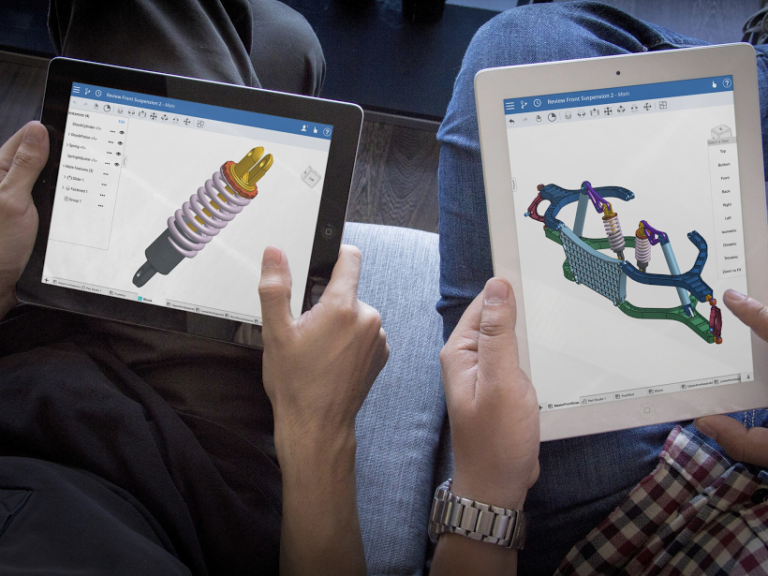
Onshape works on Linux, Chromebook, older Windows machines, and even iPads. Fusion 360 requires Windows or macOS. If you’re on Linux or a school-issued Chromebook, Onshape is essentially your only option among serious parametric CAD tools.
Built-in collaboration
Sharing in Onshape works like Google Docs — you share a link. Multiple people can work on the same document simultaneously. For collaborative projects, coursework, or working with a client remotely, this is significantly better than emailing .f3d files back and forth.
Where Fusion 360 Wins
CAM is industry-leading for free software
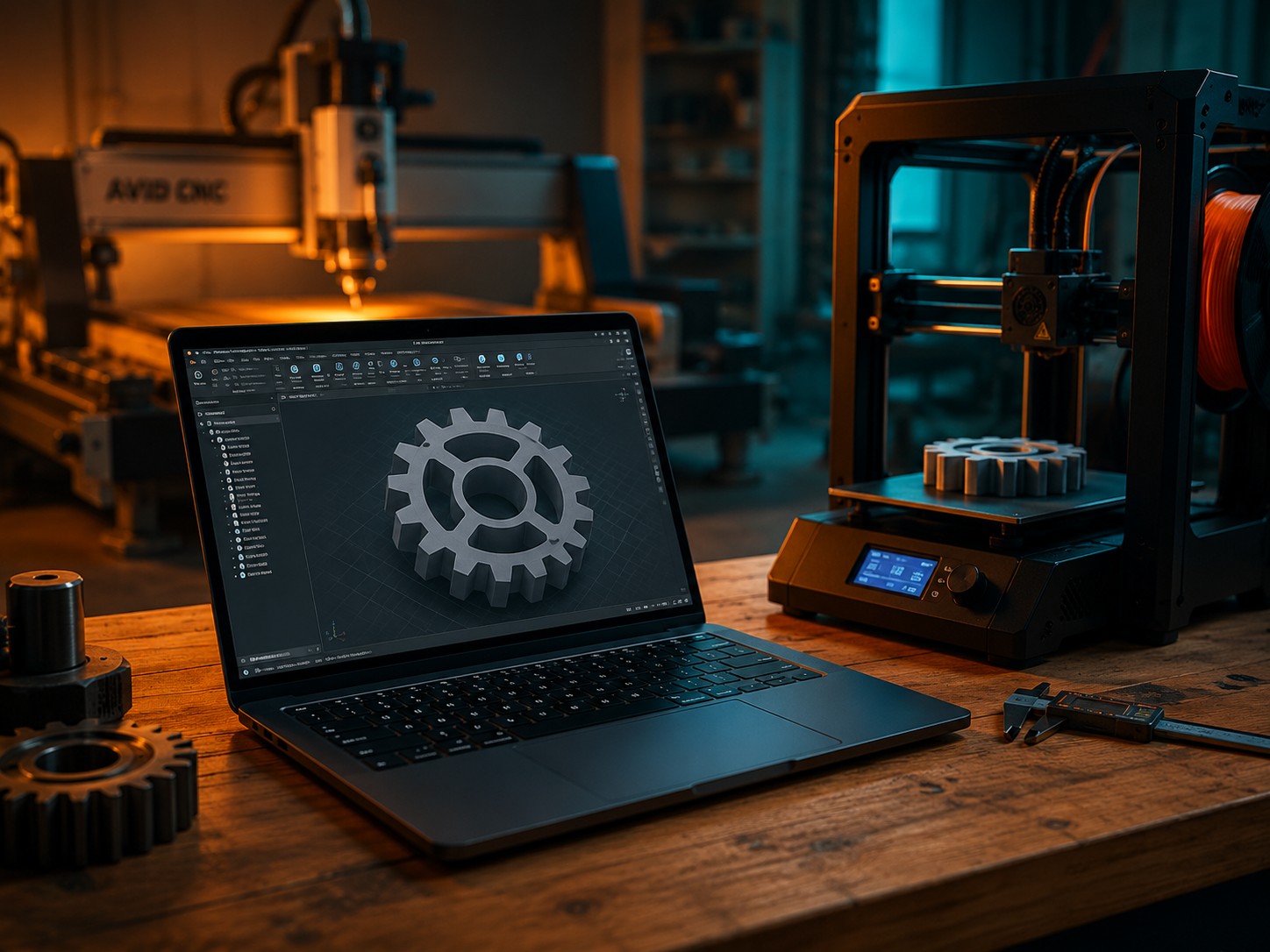
If you ever want to cut parts on a CNC router or mill, Fusion 360’s CAM workspace is exceptional — and available on the free plan. You go straight from parametric model to toolpath to G-code without leaving the application. Onshape’s CAM capabilities rely on third-party add-ons and are limited on the free tier.
Better 3D printing workflow
Fusion 360 has a built-in slicer integration and better direct export workflows for 3D printing. If you’re designing parts for FDM printing — enclosures, brackets, mechanical parts — Fusion 360’s workflow is more streamlined.
Simulation and stress analysis
Fusion 360’s free plan includes access to its simulation workspace for basic structural analysis. You can apply loads and constraints to a part and see where it might fail. Onshape’s simulation features are restricted on the free plan.
Works offline
Fusion 360 has a limited offline mode — you can continue working on cached files without an internet connection. Onshape requires connectivity. For anyone working in locations with unreliable internet (on-site, travelling, rural workshops), this is a real consideration.
Free Plan Comparison
Both tools are free for hobbyists and students, but with different restrictions:
| Onshape Free | Fusion 360 Free (Personal) | |
| Cost | £0 | £0 |
| Full modelling features | Yes | Yes |
| Private files | No — all public | Yes |
| Cloud storage | Unlimited public | 10 active documents |
| CAM features | Limited (add-ons) | Yes — included |
| Extensions/add-ons | Some free | Limited |
| Who can use it | Anyone | Personal/non-commercial only |
| Important: Fusion 360 free plan restrictions The Fusion 360 free (Personal Use) plan is for non-commercial use only. If you’re using it as part of any paid work — even freelance — you technically need a paid subscription. Onshape’s free plan has no commercial use restriction, just the public file limitation. |
Which Should You Pick?
Here’s a simple decision framework:
| If you… | Go with |
| Want to start with zero setup | Onshape |
| Are on Linux or Chromebook | Onshape |
| Are learning collaboratively / with a team | Onshape |
| Want to do CNC machining or CAM | Fusion 360 |
| Are mainly doing 3D printing | Fusion 360 |
| Need offline access | Fusion 360 |
| Are a complete beginner with no specific goal | Onshape — lower friction to start |
| Are doing commercial work | Onshape — fewer licence restrictions |
Can You Learn One and Switch to the Other?
Yes — and this is reassuring if you’re worried about picking the ‘wrong’ one. Both Onshape and Fusion 360 use the same underlying approach to 3D modelling: parametric, feature-based, constraint-driven sketching. The concepts transfer directly.
If you learn to sketch, extrude, and apply constraints in Onshape, you’ll find Fusion 360 immediately familiar (and vice versa). The interface looks different but the logic is the same. SolidWorks is also built on the same principles — learning either Onshape or Fusion 360 gives you a genuine head start on industry-standard tools.
My Recommendation
For most complete beginners, I’d start with Onshape. The reason is purely practical: you’re in the application and making your first model faster than any other tool. There’s nothing to install, nothing to configure, and it works on whatever device you have.
Once you have the basics — sketching, constraints, extrusions, assemblies — and you know what you want to build, you can make a more informed decision about whether Fusion 360’s CAM tools or simulation features are worth switching for.
If your goal from day one involves CNC machining or you already know you want that workflow, start with Fusion 360 directly.
| New to Onshape? Start here Read our step-by-step tutorial: Getting Started with Onshape — Your First Browser-Based 3D Model. It walks you through creating your first part from scratch with no prior CAD experience. |
Conclusion
Onshape and Fusion 360 are both excellent free CAD tools — the ‘best’ one comes down to your use case. Onshape wins on accessibility and collaboration; Fusion 360 wins on CAM and integrated workflows. For a beginner with no strong requirements either way, Onshape’s zero-friction setup makes it the easier starting point.